Most people don’t look for their Facebook URL until they urgently need it.
You might need it for:
- A job application
- Adding it to your Instagram bio
- Linking it to your website
- Sharing it on WhatsApp
- Submitting it for verification
And suddenly you realize – you don’t actually know where to find it.
Many guides online only show basic steps. They don’t explain:
- Why does your link show numbers instead of your name?
- Why is the copy option missing
- Why does Facebook show a login page when you open the link?
- Why does your link look different on mobile and desktop?
This guide covers everything clearly.
What Is a Facebook URL?
Your Facebook URL is the unique web address of your profile or page.
It usually looks like one of these:
Both links open the same profile. The only difference is formatting.
Method 1: How to Find Your Facebook URL on the Mobile App (Android & iPhone)
This is the most searched method.
Fastest Way
- Open the Facebook app
- Tap your profile picture or name
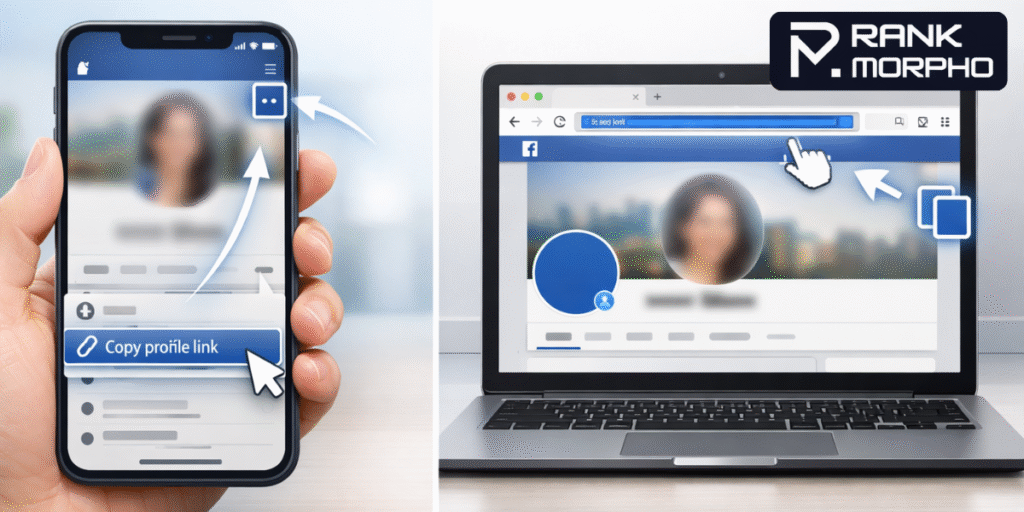
- Tap the three dots (⋯) next to “Edit Profile.”
- Tap Copy link
That copied link is your Facebook profile URL.
It works on:
- Android
- iPhone
No extra settings required.
If You Don’t See the “Copy Link” Option
This is very common.
Try these fixes:
- Update the Facebook app
- Make sure you are on your profile, not the homepage
- Look for “Your profile link” at the bottom
- Tap the Share button → then choose Copy link
Sometimes Facebook changes button placement, but the option is always there.
Method 2: How to Find Your Facebook URL on Desktop (PC or Laptop)
This method is even easier.
- Open Facebook in your browser
- Log in
- Click your name or profile picture
- Look at the browser address bar
The link shown there is your Facebook URL.
Right-click → Copy → Done.
If you see “m.facebook.com”, that is still valid.
Why Does My Facebook URL Show Numbers Instead of My Name?
If your link looks like:
facebook.com/profile.php?id=1000XXXXXXXX
It means you have not set a username.
Facebook automatically assigns every account a numeric ID. If you don’t choose a custom username, your link will stay in numeric format.
The profile still works normally. It just doesn’t look clean.
How to Create a Clean Facebook URL (Custom Username)
If you want a professional-looking link like:
facebook.com/johnsmith
Follow these steps:
- Go to Settings & Privacy
- Tap Settings
- Open “Username”
- Enter an available username
- Save changes
Once saved, your URL will automatically update.
Important:
- Usernames must be unique
- You can’t use spaces
- Some usernames cannot be changed frequently
Also Read: Is It Really Possible to View Facebook Accounts Without Creating a Profile?
How to Find Your Facebook Page URL (Business or Creator Page)
If you manage a Facebook Page, the steps are slightly different.
On Mobile:
- Open your Page
- Tap the three dots
- Tap Share
- Tap Copy link
On Desktop:
- Open your Page
- Copy the link from the browser address bar
That link is your Page URL, not your personal profile URL.
How to Find Someone Else’s Facebook Profile URL
If the profile is public:
On Desktop:
- Open their profile
- Copy the link from the address bar
On Mobile:
- Open their profile
- Tap three dots
- Tap Copy link (if available)
If their privacy settings are strict, you may not have a copy option available.
Why Does Facebook Display a Login Page When I Click on the Link?
This confuses many users.
If someone opens your link and sees a login page, it means:
- They are not logged into Facebook
- Your privacy settings limit profile visibility
- Facebook is forcing login for mobile browsers
Your link is still correct. It’s just access control.
Does My Facebook URL Change Over Time?
Your numeric ID never changes.
However, your username-based link can change if:
- You update your username
- Facebook removes it for policy reasons
If you want a permanent link, avoid changing usernames repeatedly.
Common Mistakes to Avoid
Do not:
- Use third-party “Facebook URL finder” websites
- Install unknown apps
- Share your Facebook login details
There is no need for any external tool. Facebook already provides your link directly.
Frequently Asked Questions (FAQs)
1. Is my Facebook URL the same on mobile and desktop?
Yes. The link is the same. Only the layout of Facebook changes.
2. Can I edit my Facebook URL directly?
No. You cannot edit the numeric ID link. You can only change your username.
3. Why does my link say m.facebook.com?
That is the mobile version of the same link. It works normally.
4. How do I know if my link is working?
Paste it into a browser while logged out. If it opens your profile, it works.
5. Can I hide my Facebook URL?
You cannot hide the URL itself, but you can adjust profile privacy settings.
Final Thoughts
Finding your Facebook URL is simple once you know exactly where to look.
Whether you are using:
- Android
- iPhone
- Desktop
- A personal profile
- A business page
Your link is always available inside Facebook – no tricks, no tools, no extra apps required.
Now you don’t need to search again.
Written by Rank Morpho Team
Read more articles by the author → Rank Morpho